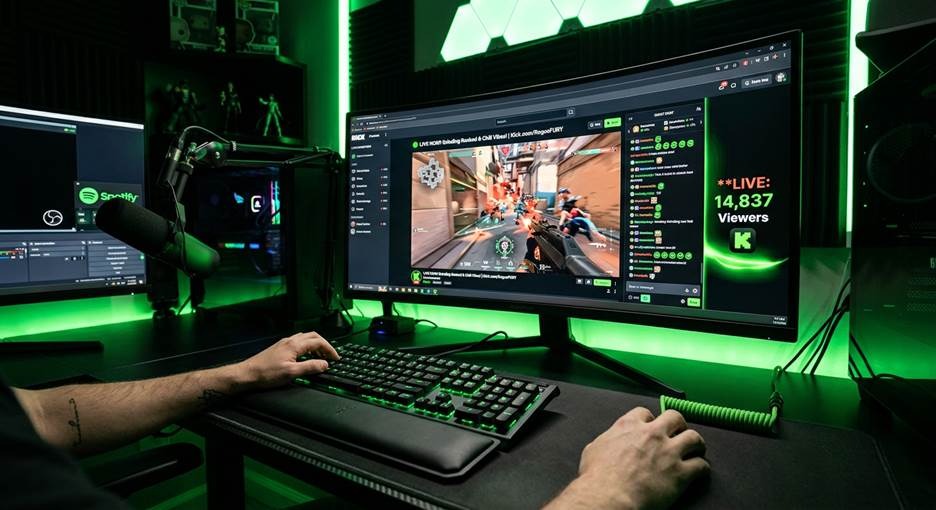
Learning How to stream on kick starts with a few essentials: a Kick account, broadcasting software, a clear microphone, and a stable internet connection. You can begin without an expensive camera or elaborate studio. This guide explains the setup process, practical stream settings, category selection, and ways to build an audience after going live.
What You Need Before Going Live
Start with equipment that can handle your content comfortably. Streaming adds work to your computer, so a game running smoothly by itself does not guarantee smooth broadcasting.
Your basic setup includes:
- A capable computer: Leave enough processing power available for broadcasting alongside your game.
- OBS Studio: Free broadcasting software for capturing video, mixing audio, and sending your stream to Kick.
- A clear microphone: An entry-level USB microphone can be enough. Positioning and background noise matter alongside price.
- Reliable internet: Around 10 Mbps upload provides a practical starting point, while 15 Mbps or more offers additional headroom for higher-quality broadcasts.
- A Kick account: Create your account and access the Creator Dashboard.
A webcam is optional. Overlays, animated alerts, and decorative lighting can wait until your video and audio work reliably.
How to Stream on Kick Using OBS
Connecting OBS to Kick requires your streaming server details and private stream key.
- Install OBS Studio and open the Auto-Configuration Wizard.
- Select the option to optimize for streaming.
- Let OBS evaluate your hardware and connection.
- Sign in to Kick and open your Creator Dashboard.
- Find the stream URL and stream key in your streaming settings.
- Open Settings → Stream in OBS.
- Choose Kick if available, or select Custom.
- Enter the required server URL and stream key.
- Add your video and audio sources.
- Set your Kick stream title and category, then select Start Streaming.
Keep your stream key private. Someone with access to it may be able to broadcast through your channel.
For gameplay, add a Game Capture source. For other content, choose the appropriate window, display, or camera source. Check display captures carefully to avoid exposing private messages or account information.
Choose Settings Your Setup Can Sustain
Understanding how to stream on kick includes balancing picture quality with reliable performance. A stable broadcast is more useful than a sharper image that repeatedly freezes.
Start with these practical options:
| Setting | Starting approach |
| Resolution | 720p for lighter workloads; 1080p when performance allows |
| Frame rate | 30 FPS for lower demands; 60 FPS for smooth motion |
| Encoder | Hardware encoding, such as NVENC on compatible NVIDIA GPUs |
| Bitrate | Begin with the OBS recommendation and test |
| Audio | 48 kHz, with balanced microphone and game levels |
The Auto-Configuration Wizard provides a baseline, but monitor actual performance. Reduce resolution, frame rate, or game settings if OBS reports encoding overload.
A wired Ethernet connection can help reduce network instability. Your selected bitrate should also leave upload capacity available for other activity.
Test Your Microphone and Gameplay
Record a short sample before broadcasting. Speak normally, launch your game, and listen back through headphones.
Your voice should remain clear when music, dialogue, or sound effects become louder. Reduce game volume if it covers your speech. Adjust microphone gain if your voice sounds distorted.
Watch the recording for black screens, incorrect cropping, and distracting overlays. During your first broadcast, monitor OBS for dropped frames and check that Kick receives the intended picture and sound.
Enable local recording or available VOD options if you want material for highlights. Check storage space before recording long sessions.
Pick a Relevant Category
Category selection affects where viewers encounter your broadcast. Large categories can contain many competing channels, making a new stream harder to notice.
Before going live, examine categories that genuinely match your content. Consider how many channels are broadcasting and how audiences are distributed between them.
A smaller category may provide more visibility, but relevance matters. Choosing an unrelated category creates the wrong expectations.
Write a specific title that gives viewers a reason to join. “First Ranked Matches: Learning Support” communicates more than a game name alone.
Build an Audience Beyond Going Live
Knowing how to stream on kick solves the technical setup. Attracting returning viewers requires additional work.
Publish useful highlights. Turn entertaining moments, helpful explanations, or interesting reactions into short clips. Give each clip context and make your channel easy to identify.
Connect with similar creators. Participate thoughtfully in communities you enjoy. Collaborations and raids can introduce relevant audiences when relationships develop naturally.
Keep talking during quiet sessions. Explain your decisions and react to what happens. New arrivals should immediately understand your content.
Viewbotting.io markets viewer boosting, residential-IP viewers, AI chatbots, and real-time dashboard controls. Its advertised offer includes code LAUNCH20 for 20% off and a free trial of 25 viewers without a card. Confirm availability before purchasing. Artificial activity does not establish genuine audience interest or guarantee followers, revenue, or discovery.
Prepare for Monetization
Subscriptions can become an income source once your account meets Kick’s applicable eligibility conditions.
Review your Creator Dashboard for current requirements, subscription terms, and payout details before planning income. Eligibility thresholds and commercial terms can change.
Under a 95% revenue-share calculation, a $4.99 subscription represents approximately $4.74 before applicable adjustments. Actual earnings depend on paying subscribers and relevant deductions. Avoid treating any estimated Affiliate timeline as a promise.
Quick Questions
Do I need a webcam?
No. Clear audio and engaging content are enough to begin.
Why is my stream lagging?
Check network stability, dropped frames, encoder load, and whether your game is consuming available hardware resources.
How quickly will I gain viewers?
There is no fixed timeline. Content quality, category fit, promotion, and repeat visits all influence growth.
Conclusion
Learning How to stream on kick becomes manageable when you follow a clear sequence: connect OBS, configure your sources, test your microphone, and choose sustainable settings. Once your broadcast works reliably, focus on relevant categories, useful clips, and content that gives real viewers a reason to return.