
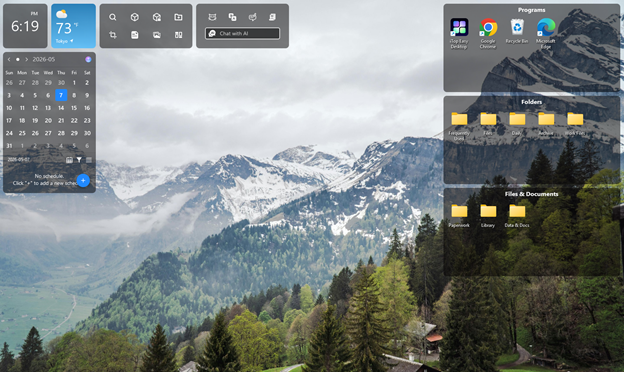
My desktop used to look like a junk drawer someone had turned sideways and shaken. Screenshots from three projects ago, half-named documents, random installers I never deleted, all scattered across the screen with no logic to any of it. I told myself it didn’t matter since I knew where everything was, but I was lying to myself every time I spent two minutes hunting for a file I’d used the day before.
The turning point wasn’t dramatic. I just got tired of the low-grade irritation that came with opening my laptop every morning. That’s what led me to iTop Easy Desktop, and somewhere between the first automatic sort and the habits I built afterward, organizing my files stopped feeling like a task and started feeling like something I actually enjoyed doing.
Why a Messy Desktop Quietly Wears You Down
It’s tempting to treat a cluttered desktop as purely cosmetic, but there’s more going on underneath than most people admit. Research on visual processing has shown that a cluttered field of view forces the brain to work harder just to filter out what doesn’t matter before it can focus on what does. That extra filtering isn’t free. It quietly drains attention you’d otherwise be spending on the actual task in front of you.
The Features That Made Organizing Feel Less Like a Chore
After installing iTop Easy Desktop, the Quick Start option scanned everything on my desktop and sorted it into labeled boxes within seconds. Documents went with documents, images went with images, and application shortcuts landed in their own group without me touching a single file. There’s something satisfying about watching a mess resolve itself that fast. It wasn’t just that the desktop looked cleaner afterward. It felt like the visual noise I’d been tuning out for months had simply been switched off.
Custom Boxes for the Way I Actually Work
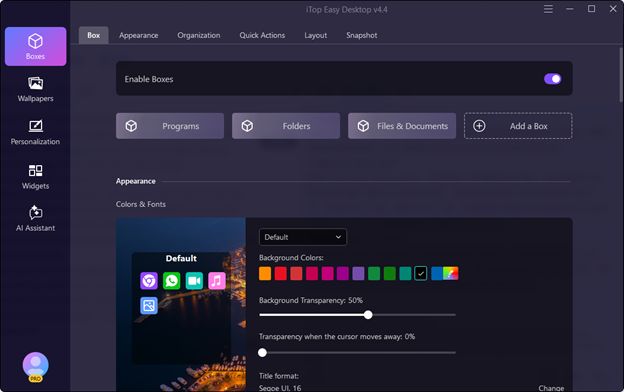
I created separate boxes for active client work, a folder of half-finished drafts, and one just labeled “deal with later” that I’m not proud of but appreciate having. Being able to name and color-code boxes around how I actually think, rather than a generic category system, made the setup feel personal instead of imposed.
The Folder Portal That Works Like a Mini File Explorer
One feature I didn’t expect to use as much as I do is the folder portal, which pins the contents of any folder directly onto the desktop as a live, browsable panel. Instead of clicking through File Explorer to reach a folder buried three levels deep, I can see its contents right there and open what I need in one step.
Discover New Files and Smart Roll
Discover New Files quietly notifies me when something new lands in a shared or downloads folder, which has saved me from missing files more than once. Smart Roll collapses boxes near the edge of the screen to save space without hiding their contents entirely, a small detail that ended up mattering more than I expected once I had several boxes running at once.
Wallpapers and Visual Customization
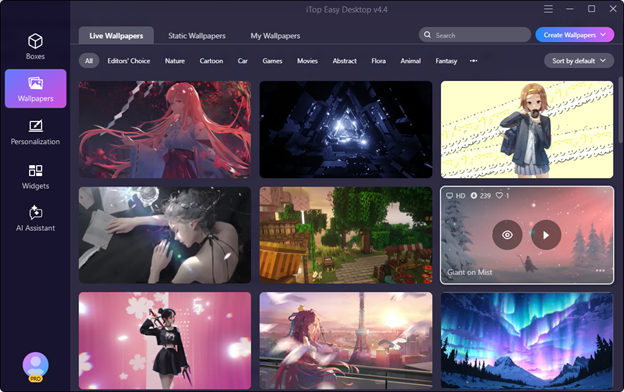
Beyond just keeping my files in order, iTop Easy Desktop offers something that genuinely surprised me—a massive collection of over 23,000 high-definition wallpapers, both live and static, all completely watermark-free. And I’m not talking about grainy, pixelated images here. These wallpapers are crisp, vibrant, and optimized to handle everything from standard displays all the way up to 4K and even 8K video playback without skipping a beat.
Beyond Organizing: Small Tools That Add Up
What surprised me most was that iTop Easy Desktop didn’t stop at sorting icons. A few extra tools built into the same interface ended up changing my daily routine in smaller, less obvious ways.
iNotes and Schedule for Staying on Top of Deadlines
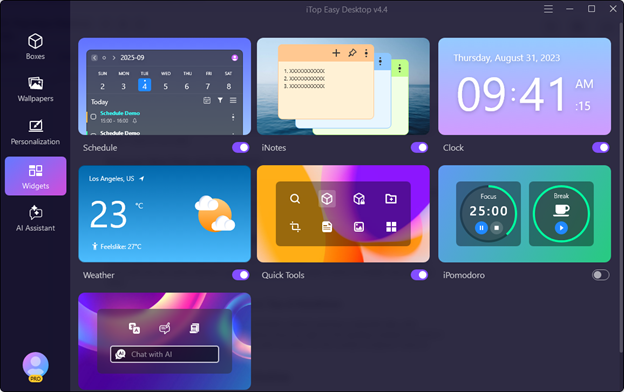
iNotes gives me a spot to jot down quick reminders without opening a separate app, and Schedule syncs with my calendar so deadlines show up right on the desktop instead of buried in a browser tab. Neither feature is flashy, but both cut down on the number of places I have to check to know what’s coming up.
A Pomodoro Timer Built Into the Desktop
The built-in focus timer breaks work into short intervals with breaks in between, and having it live on the same screen as my organized files meant I didn’t need a separate app just to manage my attention span.
Private Box for Sensitive Files
Private Box lets me tuck away files I don’t want visible during screen shares or when someone else is looking at my screen, which turned out to be more useful than I anticipated the first time a coworker leaned over during a call.
How It Compares to Stardock Fences
Before settling on iTop Easy Desktop, I looked seriously at Stardock Fences, since it’s the name most people mention first when they talk about desktop organization.
Why I Considered Fences First
Fences has a strong reputation and a polished interface, and it’s been around long enough to build real trust with a lot of users who deal with a high volume of desktop icons.
What Made Me Switch to iTop Easy Desktop Instead
The deciding factor came down to cost and how quickly I could get set up. Fences requires a paid license to unlock its full functionality, while iTop Easy Desktop gave me automatic organization, custom boxes, and the folder portal without asking for a subscription first. For someone who wanted to try the concept before committing money to it, that made the decision easy.
What Changed a Month Later
A month in, the biggest difference isn’t the appearance of my desktop, though that’s still satisfying every time I glance at it. It’s that I stopped dreading the small moments of friction that used to come with finding a file or remembering a deadline.
Organizing used to feel like a task I’d put off until the clutter became unbearable. Now it happens automatically in the background, thanks to the desktop organizer software quietly doing its job without getting in my way. And the extra tools mean I’m not bouncing between five different apps just to stay on top of a normal workday—everything I need is right there, grouped the way I actually work, not the way some rigid folder structure dictates.
That shift, from chore to habit, is the part I didn’t expect when I first installed it. I thought I was just getting a prettier screen. Turns out, I was getting a smoother, less stressful way to actually use my computer.
